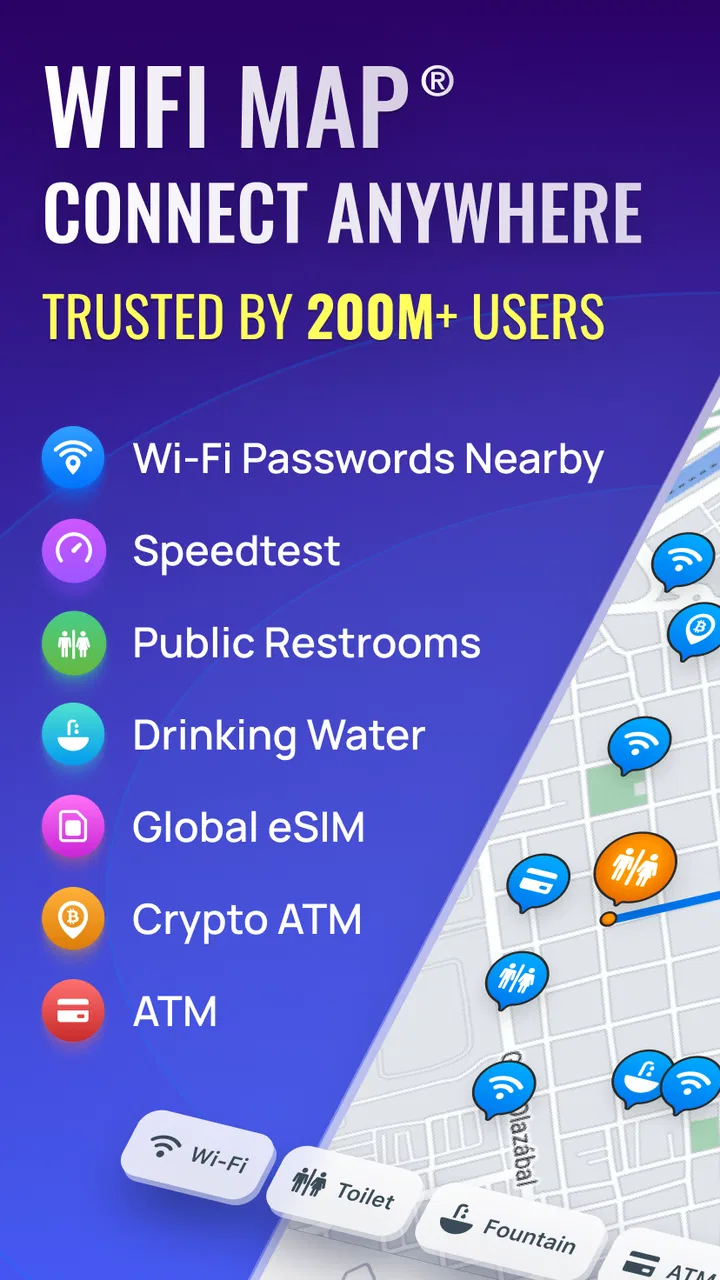
WiFi Map: Free Wi-Fi Near You
- 4.3
- Rating
- 100.00M
- Installs
- Free
- Price

 Analysis by App-foxy
When I travel, the first problem is often not finding a restaurant or a landmark; it is getting enough connection to search for either one. That is where WiFi Map: Free Wi-Fi Near You tries to help. It is a free Travel & Local app from WiFi Map LLC, built around nearby Wi-Fi information, hotspot discovery, signal checking, and travel eSIM access. I found it most useful as a practical backup when mobile data is expensive, weak, or unreliable, rather than as a complete replacement for a normal phone plan.
The app has a broad audience, which makes sense when you see its scale: it has passed 100 million installs and holds a 4.3 average from around 3 million ratings. Those figures suggest that it has become a familiar travel tool, but popularity does not remove the need to use it carefully. A hotspot map is only as helpful as the information around your current location, and public Wi-Fi is never as predictable as a private home network. My experience with the app is therefore positive, but practical: it can save a trip from an annoying connectivity problem, provided I treat it as one part of a travel setup.
Why the app matters most when the connection is already a problem
WiFi Map is at its best during those awkward network-dependent moments when I need internet access before I have a comfortable way to get it. Imagine arriving in a new city with a low data allowance. I want to check a transit route, message the person meeting me, translate an address, or book a ride. The app gives me a way to look for nearby Wi-Fi options instead of immediately spending more on roaming data.
You May Also Like

 AccuWeather: Weather Radar
AccuWeather Review: A Quick, Clear Forecast for Everyday Decisions
For everyday plans, the best forecast is the one you can understand quickly. AccuWeather makes rain timing, radar, and local conditions easy to act on, with a few trade-offs.

 Hill Climb Racing
Why Hill Climb Racing Still Turns Crashes Into One More Run
A tiny car, a bumpy hill and one more upgrade: Hill Climb Racing keeps resurfacing because its simple chaos makes every near-miss feel personal.

 AliExpress - Shopping App
AliExpress Makes Global Shopping Feel Personal, but Shoppers Bear the Risk
AliExpress turns a global marketplace into a pocket-sized discovery engine. Its reach is useful, its shopping loop compelling, and its trade-offs easy to miss.

 Lords Mobile: Kingdom Wars
Lords Mobile Is a Kingdom-Building Routine, Not a Quick Match
A case-by-case verdict on the building, battles, device demands, and social commitments that make Lords Mobile rewarding for some players and exhausting for others.

 PDF Scanner app - TapScanner
TapScanner Makes Paperwork Easier to Capture, Check, and Share
TapScanner makes scanning with a phone feel less like a rescue operation and more like a dependable step in getting work done. Its capture tools are useful, though not flawless.

 Block Blast!
Block Blast! Shows How Much a Puzzle Game Can Leave Out
A quiet grid game shows why puzzle players increasingly value instant clarity, repeatable skill and low-pressure play—and where the genre still needs to catch up.
More From Our News Desk
View All News


That use case is more valuable than simply browsing a map of networks out of curiosity. Connectivity is often needed to solve the next problem, so a tool that helps locate a possible access point can be useful at exactly the right time. I would open it before leaving a hotel, airport, station, or café area and look at the options near the place I am heading. This is not a guarantee that every listed network will work, but it gives me more choices than walking around and hoping to see a familiar Wi-Fi name.
The app’s focus is broader than a basic password-sharing directory. Its store summary also points to an offline hotspot finder, a Wi-Fi signal analyzer, and a travel eSIM. Those parts make the product feel more like a connectivity toolbox than a single-purpose map. In practice, that means I can think about the whole connection problem: finding a nearby option, judging whether a signal seems usable, and considering cellular service when Wi-Fi is not enough.
There is an important distinction here. A hotspot map is not the same as guaranteed internet access. A café may have changed its password, a business may be closed, a router may be overloaded, or a listed network may be available only to customers. I would never plan a critical airport transfer around one untested hotspot. I use the app to create a fallback plan, not to pretend that public networks are as dependable as a personal connection.
A realistic arrival-day workflow
Suppose I land in a city where my usual mobile plan does not provide affordable roaming. Before leaving the terminal, I can use a known connection to inspect nearby options and identify a café, hotel lobby, or public location that may provide Wi-Fi. Once connected, I can download the information I need for the next part of the journey, send messages, and check the route to my accommodation. The useful habit is to solve several tasks during one reliable connection instead of assuming the next hotspot will be available.
I would also take a screenshot or note down essential details while I am connected. That is a small but important recovery technique. If the next network fails, I may still have the address, booking information, or transit instructions I already loaded. WiFi Map can help me locate a connection, but sensible preparation prevents the app itself from becoming another dependency at the worst moment.
Moving around changes what “nearby” really means
The app makes the most sense for people who move through unfamiliar places: international travelers, students settling into a new area, digital nomads, and anyone trying to reduce mobile-data use. It can also be useful locally when home broadband is down or when a temporary work location has poor reception. I would not limit it to vacations, although travel is clearly where the value is easiest to understand.
Location matters more than the map alone suggests. A hotspot that looks close may be inside a building, behind a locked entrance, on another floor, or on the opposite side of a busy road. When I use a tool like this, I check the surrounding landmarks and opening hours mentally, even if the app makes the point look convenient. A short distance on a screen does not necessarily mean easy access in real life.
This is one reason I prefer using the app before I am desperate. If I have a few minutes to compare nearby possibilities, I can choose a place that is likely to be open and suitable for what I need. If I wait until my phone is almost unusable, I am more likely to accept the first option without thinking about privacy, comfort, or whether I can actually enter the location.
Using the signal analyzer as a decision tool
The Wi-Fi signal analyzer is a particularly useful idea because finding a network name is only the first step. A visible network may still be too weak for a video call, a large upload, or even a stable map search. I would use signal information to decide where to sit or whether to move closer to the access point, rather than treating it as a technical score that automatically tells me the internet quality.
Signal strength and internet speed are not identical. A strong signal can still lead to slow browsing if many people are using the same connection. Conversely, a moderate signal may be perfectly adequate for messages and directions. My practical approach is to match the connection to the task: basic communication needs less than a video meeting, cloud backup, or software update. That simple distinction avoids judging a hotspot too quickly.
Another non-obvious benefit is that the analyzer can help me avoid wasting time in a large public space. If the signal is poor at one table, I can test another area before giving up. This is more useful in places such as libraries, stations, cafés, or shared workspaces where the router may be placed far from the seating area. It turns the app from a “find and connect” tool into a small troubleshooting aid.
What happens when the first hotspot fails
Failure is part of using public Wi-Fi, and this is where expectations matter. A password may be outdated, the network may require a browser sign-in, or the connection may disappear after a short period. I would not interpret one failed hotspot as proof that the whole app is useless. Instead, I would move through a recovery sequence: check whether I am at the correct location, confirm that the network name matches, try another listed option, and use mobile data briefly if I need to complete an urgent step.
The app’s travel eSIM option is relevant here because it offers a cellular alternative when Wi-Fi is unavailable. I see that as a useful safety net, not necessarily the first choice for every traveler. Someone who already has an affordable roaming plan may not need it. Someone visiting a place with expensive data, however, may appreciate having a separate option rather than relying entirely on public networks. The better choice depends on the trip, the phone, and the user’s existing service arrangement.
There is also a psychological advantage to having more than one route to connectivity. If I know I can switch from a hotspot search to cellular service, I am less likely to spend half an hour repeatedly trying a network that is clearly not working. The app cannot remove every failure, but it can encourage a more flexible approach: Wi-Fi first when appropriate, then another connection method when the situation calls for it.
I would still prepare for the app itself to be unavailable at the moment I need it. Any tool that helps locate connectivity can be difficult to use if the phone has no connection at all. That is why I prefer checking likely locations in advance and keeping critical travel details accessible in another form. The app’s offline hotspot finder is presented as part of the product, but I would test the workflow before depending on it for a remote or complicated journey. A feature is most valuable when I understand how it behaves on my specific device and route.
Privacy and security deserve equal attention
Finding public Wi-Fi is not the same as finding a safe place for sensitive activity. I would avoid entering banking credentials, changing important passwords, or handling confidential work on an unknown network unless I had a trusted protective setup. For ordinary tasks such as checking directions or sending a casual message, the risk may feel manageable, but convenience should not make me careless.
I also pay attention to the network name. A name that resembles a hotel, airport, or café does not automatically prove that it belongs to that business. If staff are available, I would confirm the official network before connecting. This is a simple habit, yet it is more valuable than blindly choosing the strongest signal shown nearby.
For work travelers, the app is best treated as an emergency bridge. It may help me get online long enough to notify a colleague or retrieve a document, but I would prefer a trusted personal hotspot or a reliable eSIM for confidential meetings. That is a clear situation where another option is better. WiFi Map expands my choices; it does not turn every public access point into a private office network.
Keeping mobile data under control
One of the strongest reasons to use the app is data awareness. Travelers often waste mobile data on tasks they could have completed over Wi-Fi, especially photo uploads, system updates, streaming, and automatic backups. I would use a reliable hotspot to handle those larger jobs deliberately, then disconnect when finished. The important word is reliable: saving data is not worth exposing important information to a questionable network.
A good workflow is to separate urgent and non-urgent tasks. Directions, messages, and booking confirmations come first. Large downloads and media syncing can wait until I am on a connection I trust. I would also avoid assuming that a public hotspot is unlimited or fast enough for background activity. Phones can continue using data even after I think I am connected, so checking the device’s connection status is part of responsible use.
The free price makes it easy to try without committing money at the start, although the app includes in-app purchases ranging from $1.49 to $37.99 per item. That matters for anyone comparing it with a carrier plan or a dedicated eSIM. I would begin with the free experience and only pay for an added option if it solves a specific travel problem. A person who travels rarely may find the free tools sufficient, while a frequent traveler may consider the paid connectivity choices more worthwhile.
For families, the app can also reduce the pressure to buy separate data immediately for every device, but I would not turn one public connection into an uncontrolled family download session. A café network may become slow when several phones connect, and children’s tablets can consume data or bandwidth quickly. Planning which device needs access first is a small step that makes the experience less frustrating.
Who should use it, and who should look elsewhere?
I recommend WiFi Map to travelers who want a practical way to search for nearby access points and who are comfortable making their own judgment about reliability and security. It is especially appealing if I am moving between cities, trying to limit roaming, or dealing with a temporary loss of home internet. The combination of hotspot discovery, signal analysis, and an eSIM route gives it more range than a simple list of nearby networks.
I would be more cautious recommending it to someone who needs guaranteed, continuous access for remote work, navigation in isolated areas, or time-sensitive business. That person should prioritize a dependable mobile plan, a personal hotspot, or another connection they control. I would also suggest skipping it if the only goal is occasional home Wi-Fi troubleshooting; a router’s own management tools may be more direct for that job.
Compared with searching manually in a browser, the app is more convenient when I am already mobile and need location-focused information. Compared with relying only on a carrier, it may reduce dependence on roaming, but it cannot match the consistency of a paid cellular connection. Compared with a dedicated eSIM app, it offers a wider Wi-Fi discovery angle, while an eSIM may be the cleaner choice when I want predictable mobile service without visiting public hotspots. The right choice is not universal; it depends on whether my priority is low cost, convenience, privacy, or continuity.
The age rating is Everyone, which fits the straightforward travel purpose, and the app runs on operating systems from version 9 onward. The current version is 8.6.42, so I would still check compatibility on an older phone before a trip rather than discovering a problem at the airport. These details are easy to overlook, but travel tools should be installed and tested before departure, when there is time to adjust.
My connectivity verdict
After using WiFi Map as a travel aid, I see its real strength in preparation and recovery. It helps me think beyond the first connection attempt, compare nearby possibilities, inspect signal conditions, and keep an eSIM option in mind when Wi-Fi is not enough. Those are meaningful advantages when connectivity shapes every part of a journey.
Its main limitation is the same thing that makes public Wi-Fi difficult in general: availability and quality can change from one place to the next. The app can point me toward an option, but I still need to verify the location, protect sensitive information, and keep a backup plan. I would not use it as my only lifeline for a critical trip.
For me, the best way to use it is simple: install it before traveling, explore the areas I expect to visit, save essential information while connected, use the signal tools to choose a sensible spot, and switch to cellular service when repeated hotspot attempts stop being productive. With that mindset, the app feels less like a promise of free internet everywhere and more like a useful connectivity companion.
My recommendation is positive for budget-conscious travelers and occasional connection emergencies. I would choose it alongside, not instead of, a dependable mobile option. If you understand that difference, WiFi Map can make unfamiliar places easier to navigate and help prevent a small connectivity problem from becoming the main story of your day.
FAQs for WiFi Map: Free Wi-Fi Near You
01What is WiFi Map and how does it work?
WiFi Map is a mobile application designed to help users find free Wi-Fi hotspots nearby. It uses a community-driven approach where users contribute information about available networks, including passwords when necessary. This crowdsourced data allows users to easily connect to Wi-Fi in various locations, enhancing their internet accessibility on the go.
02Is WiFi Map safe to use for finding Wi-Fi hotspots?
WiFi Map is generally safe to use as it provides information about public Wi-Fi networks. However, users should exercise caution when connecting to any public network. It's advisable to use a VPN for secure browsing and avoid accessing sensitive information, like banking details, while connected to public Wi-Fi.
03Can I contribute to WiFi Map by adding new Wi-Fi networks?
Yes, WiFi Map encourages users to contribute by adding new Wi-Fi networks and updating existing ones. By sharing information, such as network names and passwords, users can help expand the app’s database, making it a more valuable resource for others looking for free internet access.
04Does WiFi Map work offline?
WiFi Map offers offline functionality by allowing users to download maps of specific areas. This feature is particularly useful for travelers who want to access Wi-Fi hotspots without incurring data roaming charges. Once downloaded, users can view available networks in the area without needing an internet connection.
05Are there any costs associated with using WiFi Map?
WiFi Map offers a free version with basic features, but it also provides a premium subscription for an enhanced experience. The premium version includes benefits like ad-free usage, unlimited offline maps, and prioritized customer support. Users can choose based on their needs and budget.
Pros
- Extensive database of Wi-Fi hotspots
- User-friendly interface and navigation
- Offline maps available for travel
- Community-driven updates ensure accuracy
- Saves data by connecting to free Wi-Fi
Cons
- Requires location access for functionality
- Ads can be intrusive at times
- Some hotspots may be outdated
- Limited features in free version
- Battery consumption can be high

WiFi Map: Free Wi-Fi Near You
Gallery